

How to Set Up Your Data Agreements
Before your Realtics account can be approved, you need to sign data access agreements with TRREB/PropTx through their syndication portal. It takes about 5-10 minutes and only needs to be done once.
Open Syndication PortalYou must complete this process 3 times — once per agreement type.
Steps 2-6 need to be repeated for DLA, IDX, and VOW. All three are required for full Realtics access.
Before you start
TRREB Credentials
Your TRREB Membership ID and PIN. Forgotten your PIN? Use the "Forgot PIN?" link on the portal login page.
Your Website URL
Your Realtics agent site URL in the format firstname-lastname.realtics.ca. You can update this later.
Broker Approval
Your Broker of Record must approve your agreements before TRREB processes them. Give them a heads-up.
Step-by-step walkthrough
01
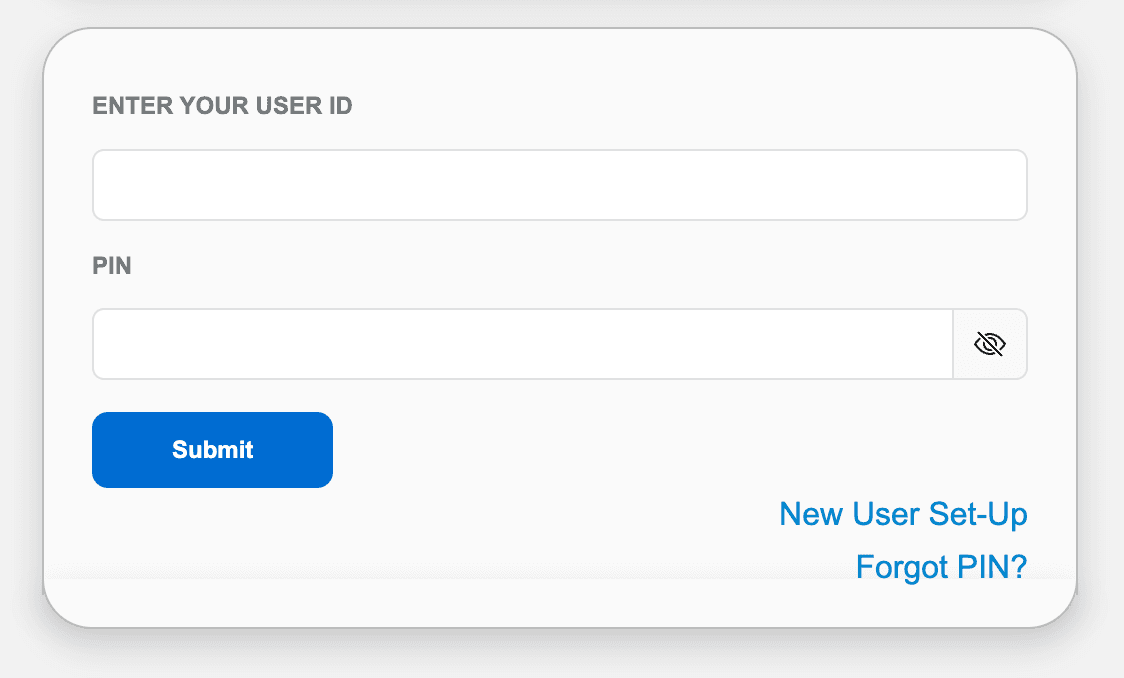
Sign In to the TRREB Portal
New to the portal? Click New User Set-Up on the login screen to create your account first.
02
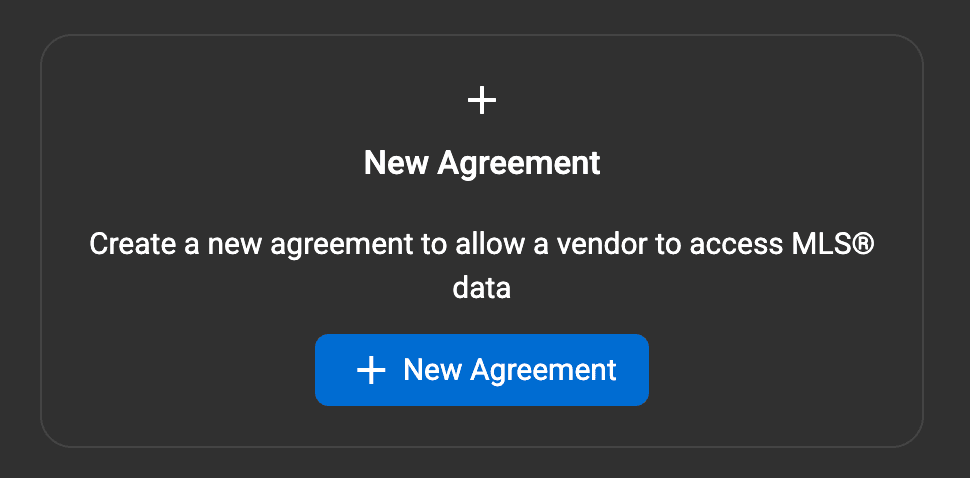
Create a New Agreement
03
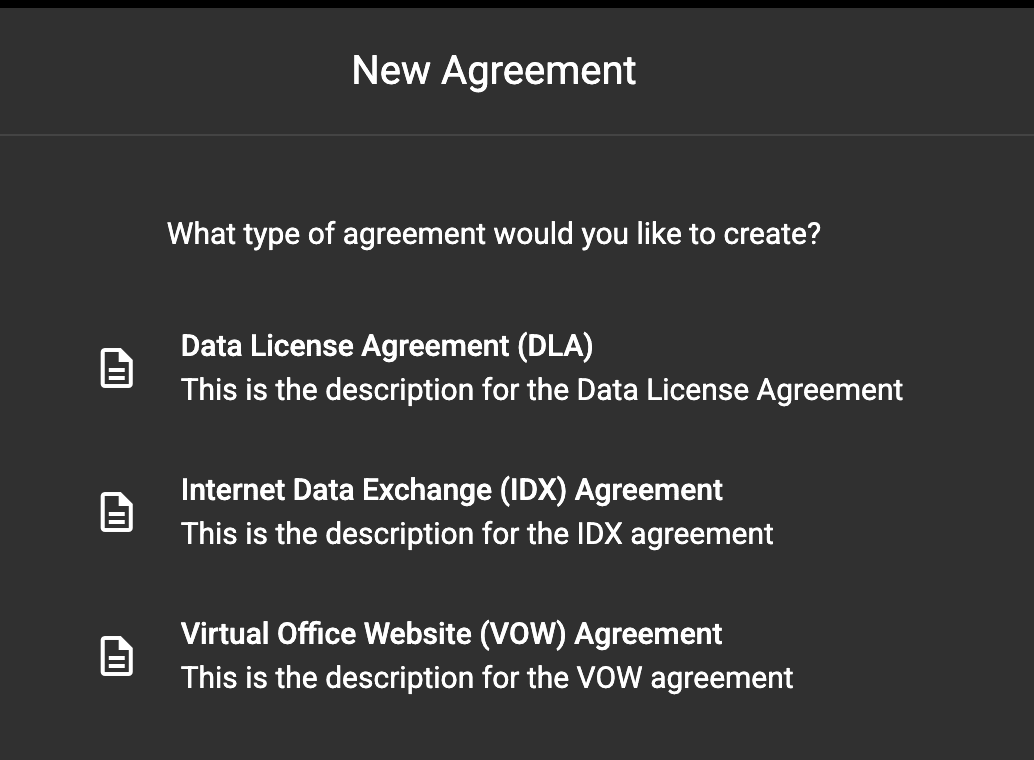
Choose Your Agreement Type
Data License Agreement
Display your own active listings alongside your contact details on your agent site.
Internet Data Exchange
Show all active MLS listings publicly — the standard for agent websites.
Virtual Office Website
Provide registered users with expanded listing history and enhanced data access.
04
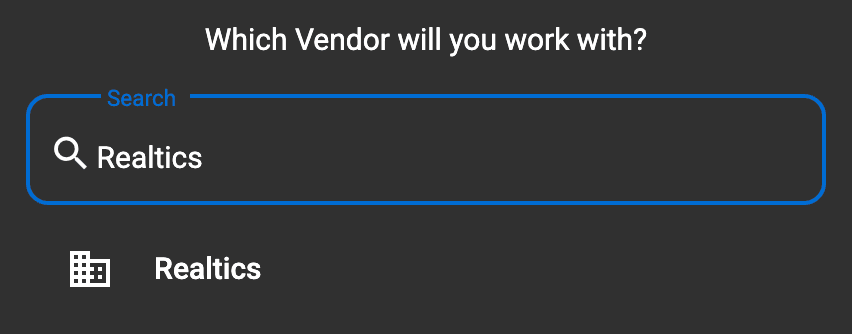
Search for Realtics as Your Vendor
05
Enter Your Website URL
firstname-lastname.realtics.ca (e.g. john-smith.realtics.ca).Not sure of your exact URL? It follows your name as registered with TRREB. You can update it on the portal at any time without starting a new agreement.
06
Review and Sign the Agreement
After signing, go back and repeat steps 2-6 for each remaining type — DLA, IDX, and VOW. All three must be completed before your account can be approved.
07
Notify Your Broker of Record
After signing, your Broker of Record will receive an email notification asking them to approve the agreement on their end. Reach out to them directly to move things along — broker approval typically takes less than 24 hours once requested.
Once your broker approves, Realtics will automatically detect the active agreement and move your account to verified status. You'll be notified by email and can log in to your dashboard right away.
That's it — once verified, you'll have full access to the Realtics platform and live MLS data.
No extra fees — TRREB does not charge anything for data access agreements. There are no additional costs beyond your Realtics subscription.
All signed? Check your status.
Once your agreements are signed and your Broker of Record has approved them, return to Realtics and refresh your verification status.
Realtics revolutionizes the real estate industry with cutting-edge artificial intelligence solutions.
We help agents make smarter decisions through predictive analytics.